From menu to pickup in 6 steps
From menu to finished dish: this is how an order flows through AI Waiter, step by step.
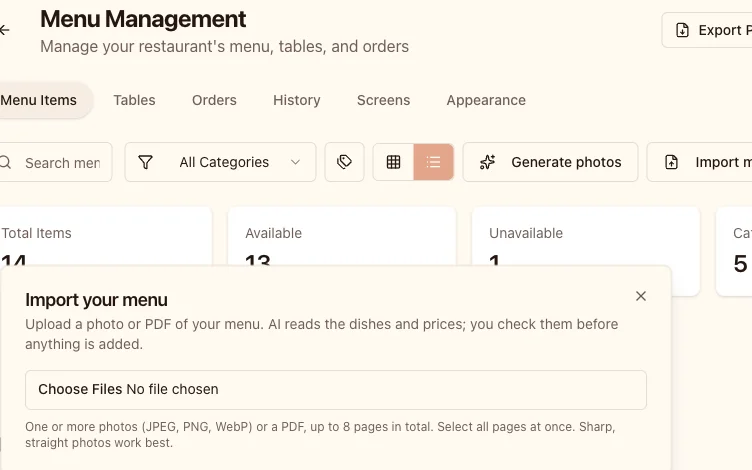
Set up your menu
Upload a photo or PDF of your menu. AI reads the dishes, prices and allergens; you check everything before it goes live. You can always add or edit dishes by hand.
- Import your menu with AI
- You review before anything goes live
- AI photos & descriptions per dish
Print a QR code per table
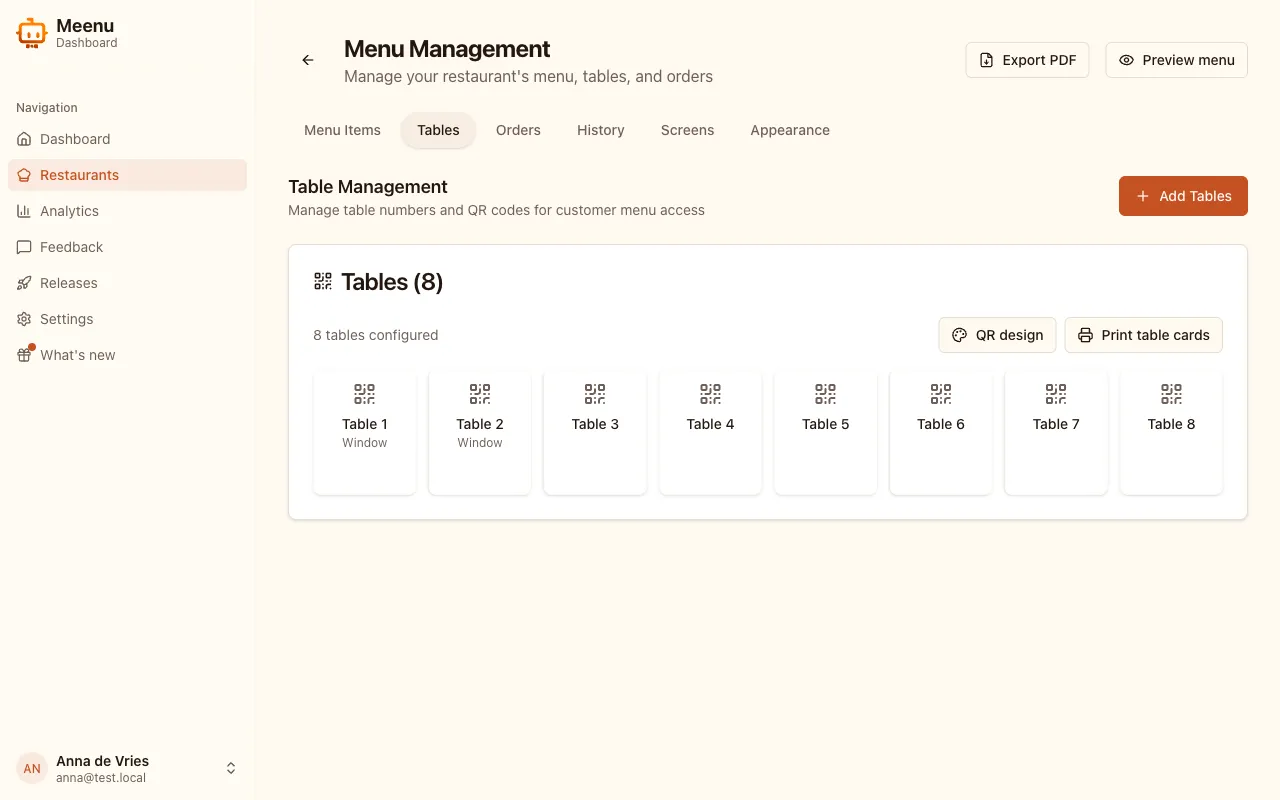
Add your tables and print the QR cards. Every code opens the menu for that table, so you always know who ordered what.
- Unique code per table
- Your own design, ready-to-print cards
- Works for pickup and takeaway too
Guest scans and picks
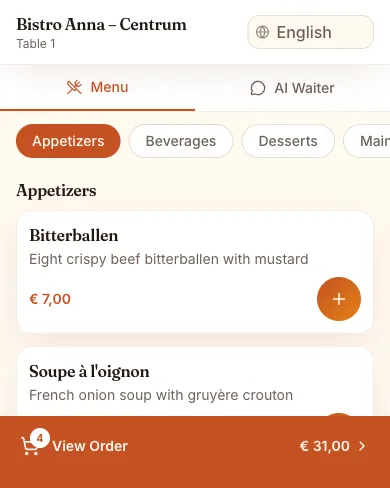
The guest scans the code with their phone: no app, no account. The menu is in their own language and they can order by browsing or by chatting with the AI waiter.
- No app or account needed
- Menu in multiple languages
- Browse or chat with the AI waiter
Pay with Stripe
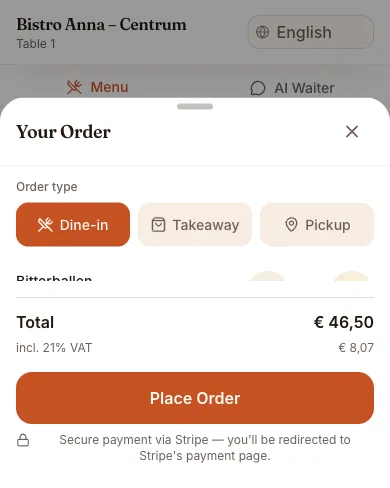
The guest reviews the order and total, picks dine-in, takeaway or pickup and pays securely via Stripe. The money goes straight to your own Stripe account.
- Pay with iDEAL, Apple Pay, cards and more
- Total incl. VAT shown up front
- Money lands directly in your account
Kitchen and dashboard see it instantly
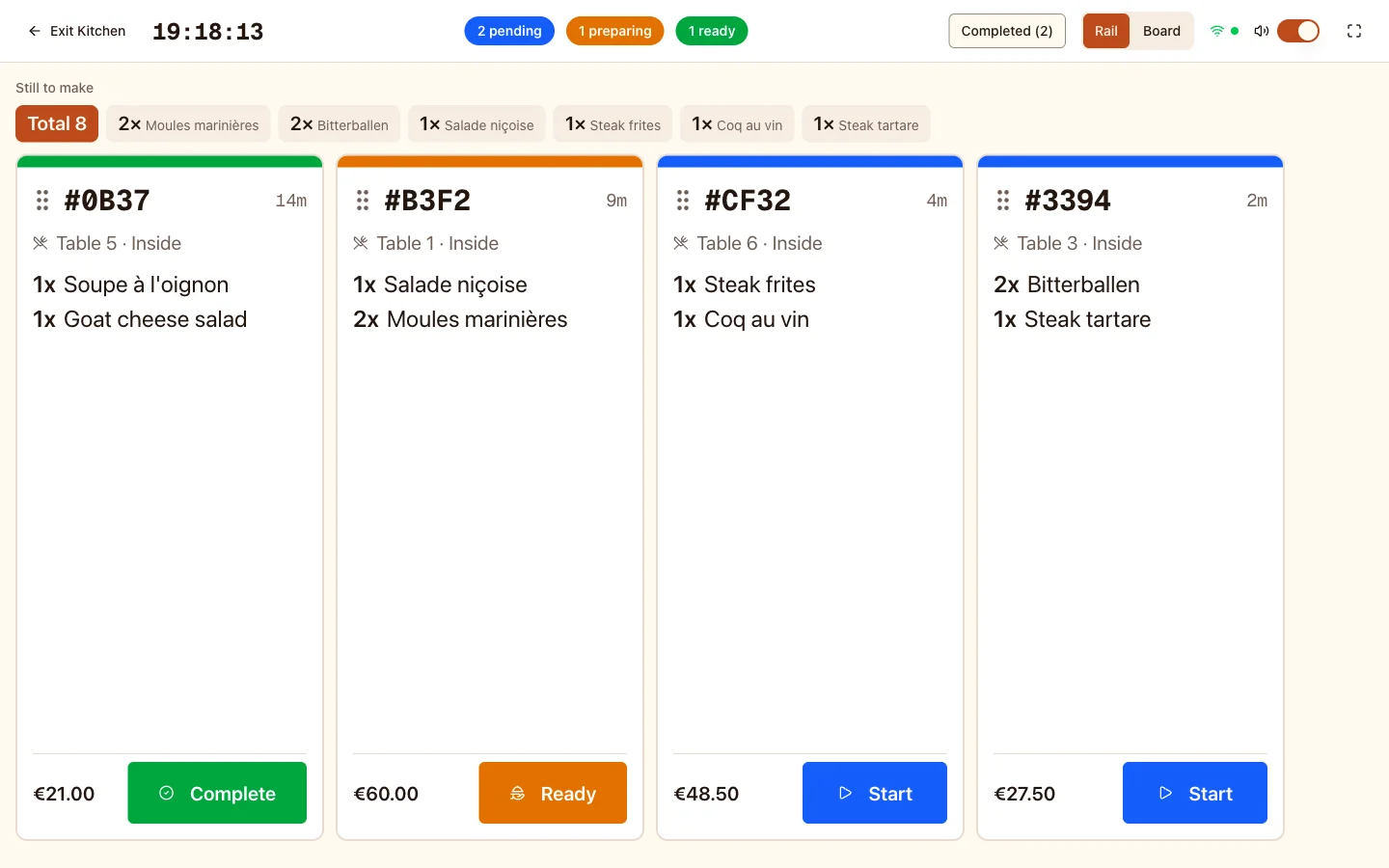
As soon as it’s paid, the order appears as a card on the kitchen display, with table, dishes and waiting time. The kitchen starts it and marks it ready; you follow everything live in the dashboard.
- On top: what still needs to be made
- One card per order with table and waiting time
- Switch between Rail and Board view
Done: served or picked up
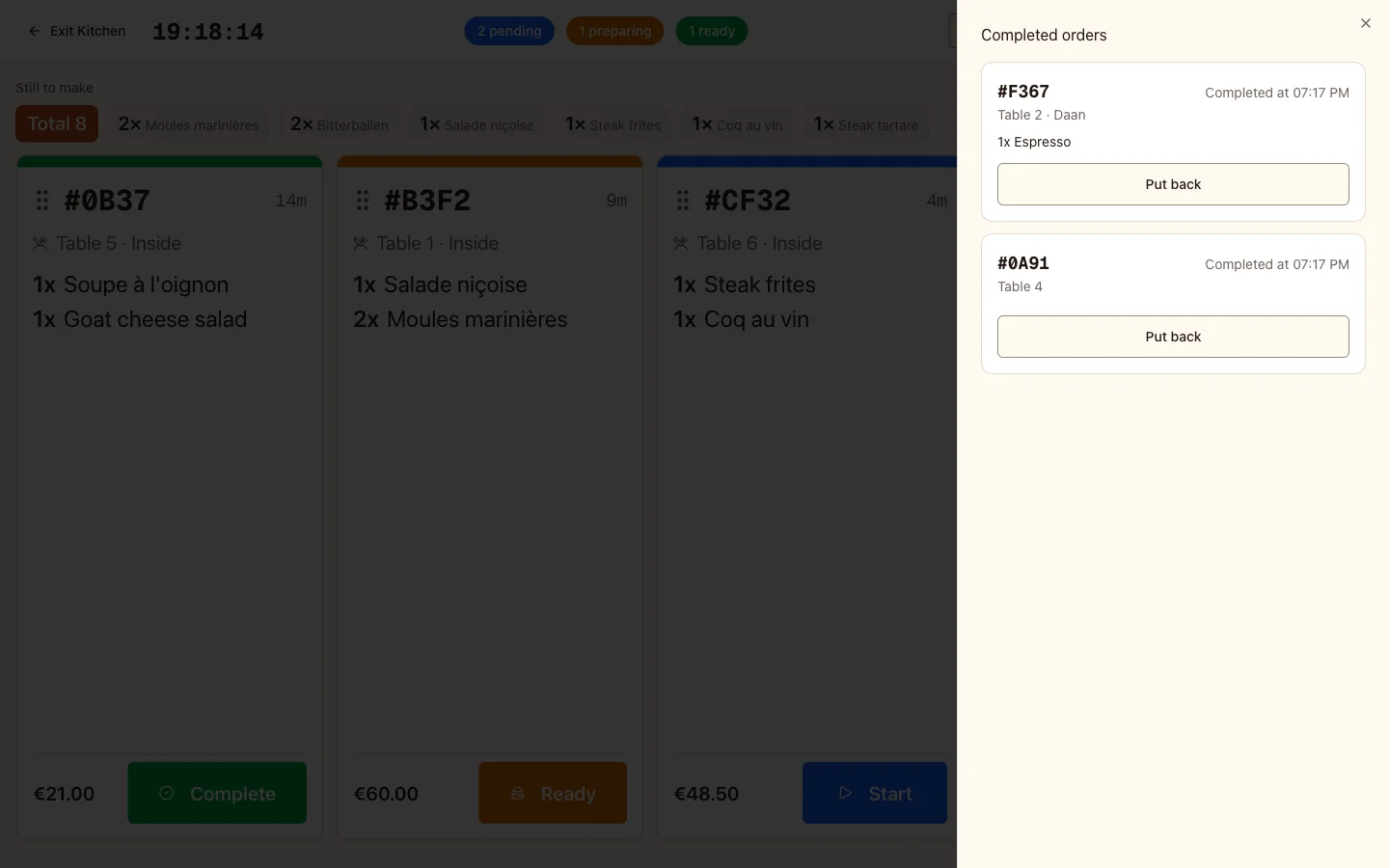
When the kitchen marks an order ready, staff know it is up. After serving or pickup you complete it. Completed by mistake? Put it back with a single tap.
- Complete with a single tap
- Put completed orders back
- Everything stays in your order history
Your order tickets, live on an iPad in the kitchen
No ticket printer or POS needed. Put an iPad or Android tablet on the pass and every order appears straight away as a ticket, per table.
Paired in two minutes
- 1
Add a screen
In your dashboard under Menu → Screens → Add screen. You get a QR code.
- 2
Scan it with the iPad
Point the iPad's camera at the QR code. The kitchen screen opens and is paired right away. Can't scan? Open the pairing link on the iPad and type the 6-digit code it shows into your dashboard.
- 3
Tickets arrive live
With a sound for every new order. Tap Start, Ready and Complete to move a ticket along.
- Runs in the browser of any recent iPad or Android tablet, no app needed
- The screen stays on while the kitchen screen is open
- The tablet only sees orders, not your menu, revenue or settings
- No password on the tablet, and you can unpair it any time from your dashboard
The real product, not a mock-up
Short recordings of the screens your guests, kitchen and staff really use.
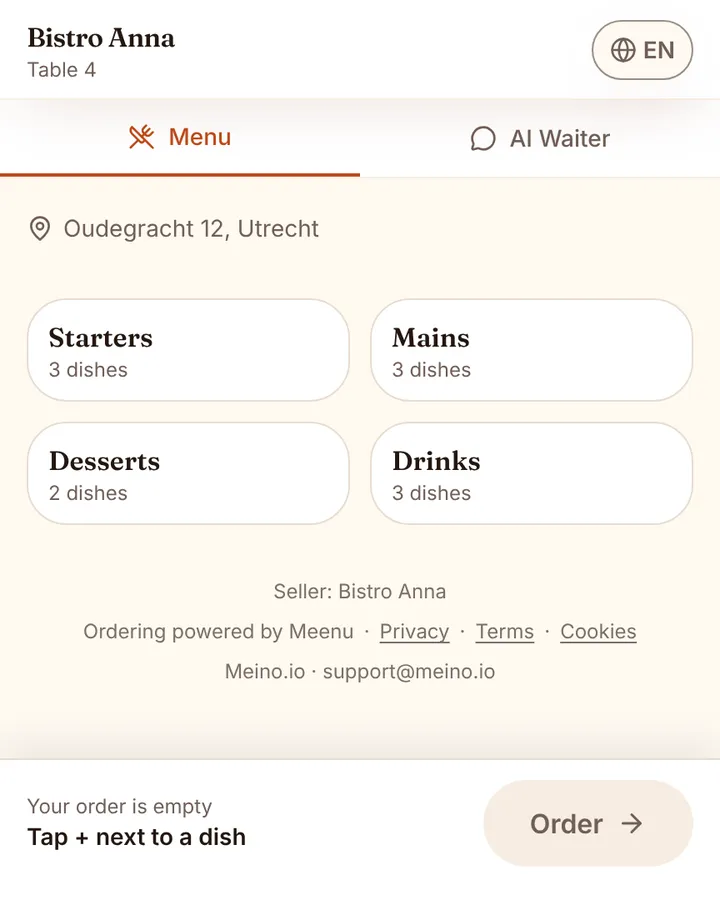
The menu for guests
Browsing by category, adding dishes and checking the order, on the guest’s phone.
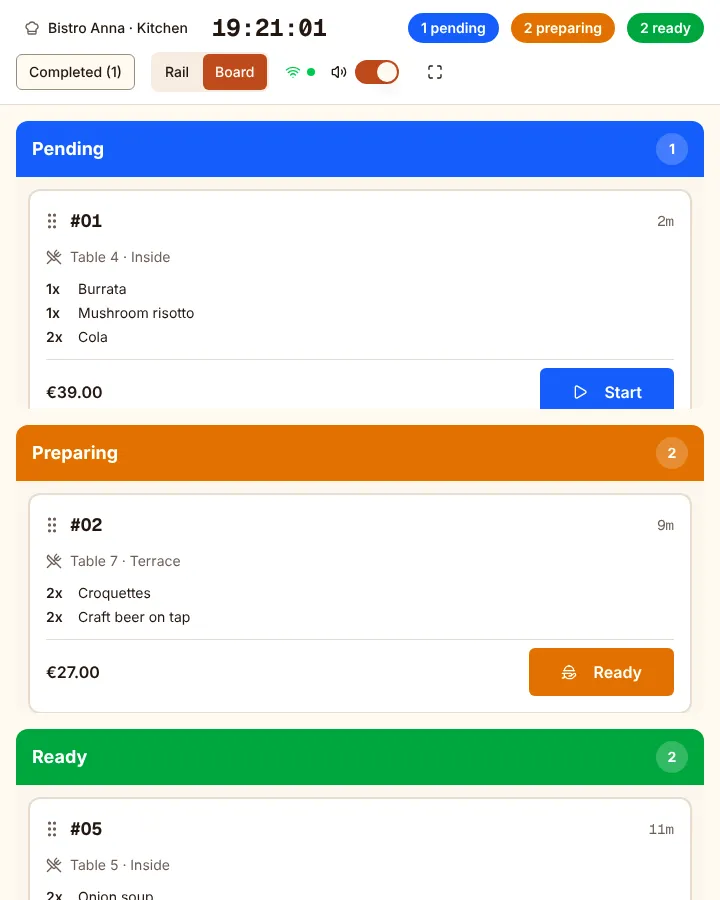
The kitchen display
A new ticket arrives, the cook starts it and marks it ready.
The waiter phone
Pick a table, order, and the round is on the table’s tab right away.
From opening to closing
A normal evening with AI Waiter, across every screen: the guest’s phone, the kitchen display, the waiter and your dashboard.
- You
Doors open
Your opening hours are set, so from opening time the menu takes orders on its own. Out of fish? Mark the dish sold out until tomorrow and nobody can order it.
- Guest
The first table scans
Table 4 scans the QR code, browses the menu and asks the AI waiter what is vegetarian. They pay with Apple Pay without waiting for anyone.
- Kitchen
The ticket is in the kitchen
A card with the table, the dishes and the wait time appears on the kitchen display. The cook taps “Start”, and the guest sees on their phone that it is being prepared.
- Staff
It gets busy
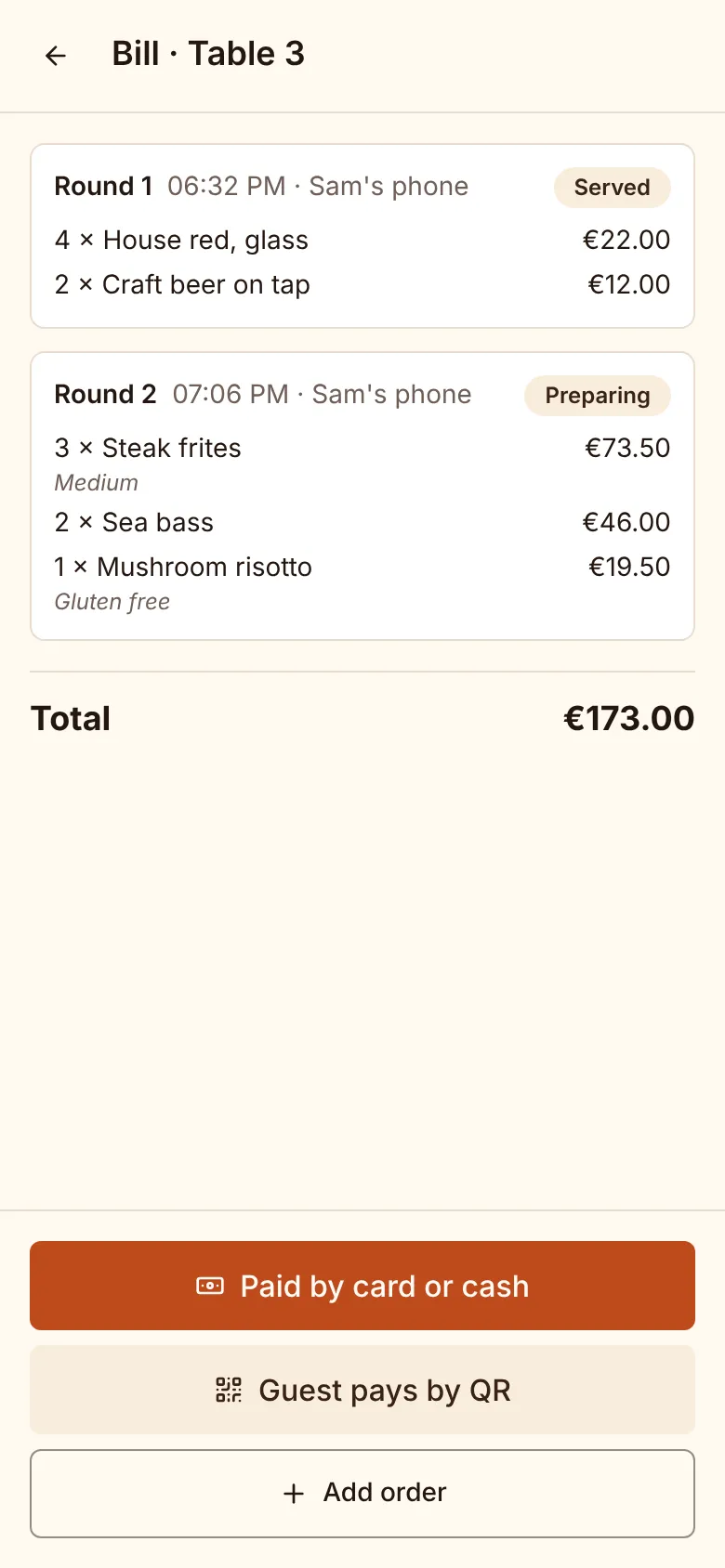
A group at table 3 would rather order with a waiter. The waiter puts the drinks, then the mains, on the table’s tab as rounds, from their own phone.
- Staff
Paying at the table
Table 3 wants the bill. The waiter shows a QR code and the guest pays the whole tab on their own phone. Or the guest pays by card at the bar, and the waiter marks the tab paid.
- You
Kitchen closed
One switch stops taking orders. Guests can still view the menu, but see a notice and can no longer order.
- You
The day in numbers
The dashboard shows revenue, the number of orders and your best-selling dishes. Online payments are in your own Stripe account.
Your waiters order too, on their own phone
Not every guest wants to order themselves. Your staff take orders on a phone: the order goes straight to the kitchen and onto the table’s tab.
Included in Professional
Every table at a glance
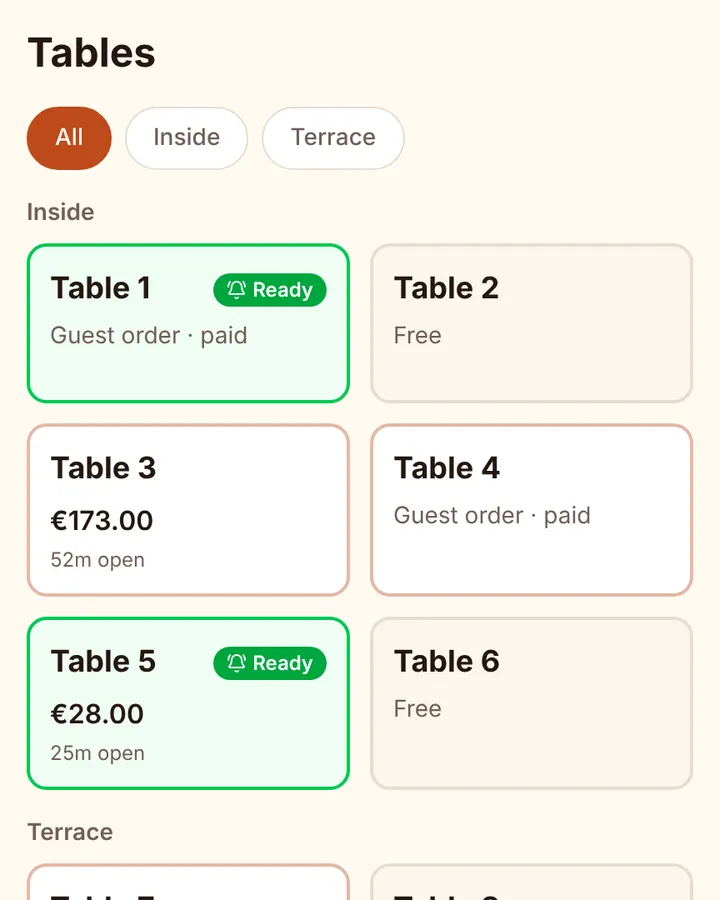
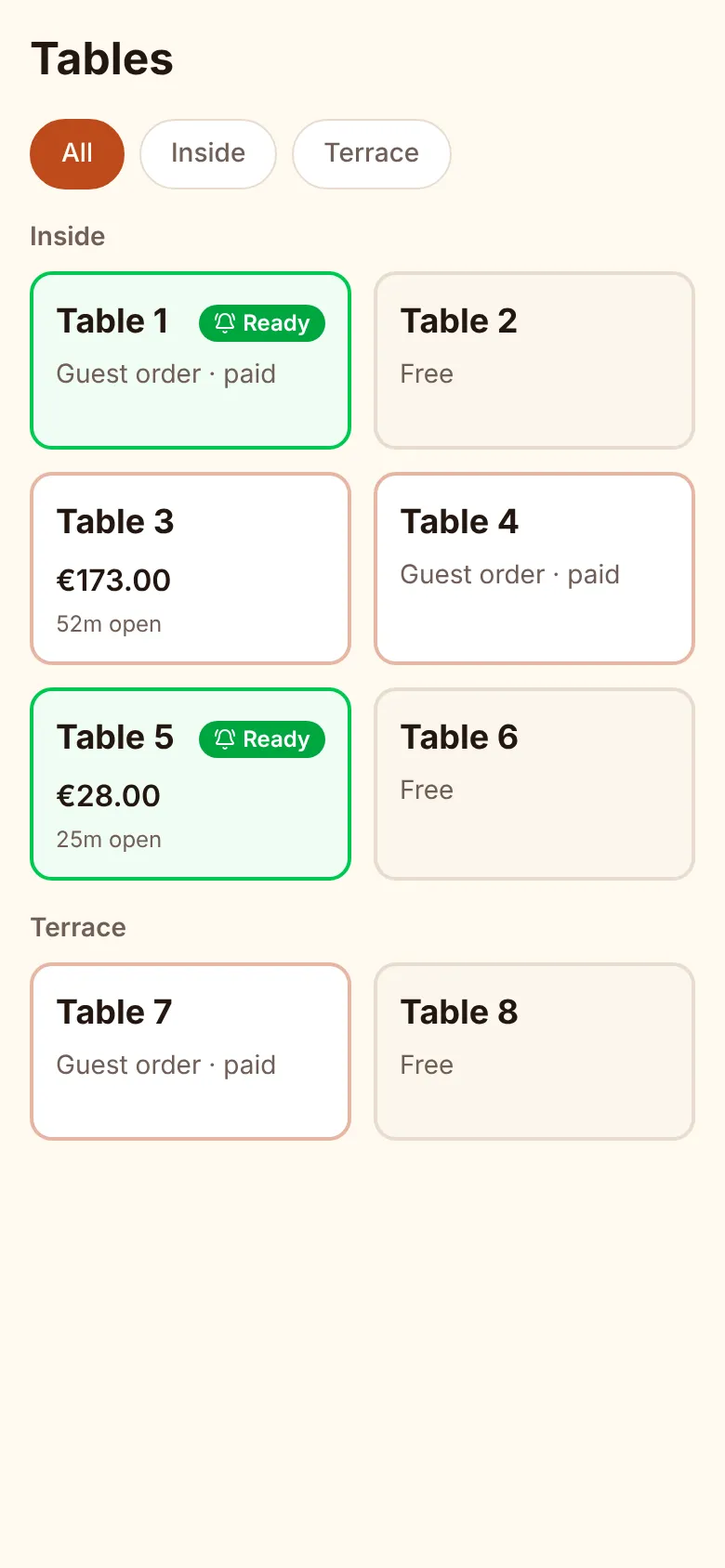
A list or your own floor plan, per area. See which tables are busy, how long their tab has been open and what is ready.
Orders go straight to the kitchen
Pick the dishes, add options and a note, and tap “Send to kitchen”. No paper ticket, no walking: it is on the kitchen display at once.
Rounds on the table’s tab
Each order is a round on the table’s tab, with the status of every dish. Guests pay it all at the end.
Settle the way the guest likes
With your own card terminal or cash, and the waiter marks the tab paid. Or the guest scans a QR code on the waiter’s phone and pays online.
AI Waiter next to pen and paper or a till
AI Waiter takes over taking and passing on orders. It does not replace your till or card terminal.
Guests order themselves at the table
- NoPen and paper
- NoTill with ticket printer
- YesAI Waiter
- Via the QR code, no app
Orders reach the kitchen on their own
- NoPen and paper
- Someone walks the ticket
- YesTill with ticket printer
- On the ticket printer
- YesAI Waiter
- On a tablet or screen, with wait time
Guests pay online themselves
- NoPen and paper
- NoTill with ticket printer
- YesAI Waiter
- Via Stripe: Apple Pay, cards, iDEAL and more
Questions about dishes answered
- PartlyPen and paper
- When someone has time
- PartlyTill with ticket printer
- When someone has time
- YesAI Waiter
- The AI waiter, from your menu; allergy questions go to your staff
A tab per table
- PartlyPen and paper
- On paper
- YesTill with ticket printer
- YesAI Waiter
- With the waiter phone (Professional)
Card payment at the bar or till
- NoPen and paper
- Separate card terminal
- YesTill with ticket printer
- NoAI Waiter
- With your own card terminal; the waiter marks the tab paid
No extra hardware
- YesPen and paper
- NoTill with ticket printer
- Needs a till, printer and paper rolls
- YesAI Waiter
- A tablet or phone with a browser is enough
AI Waiter is not a till system and has no standard till integration. If you use a till for your accounts, you keep it. We are happy to discuss a custom integration on the Enterprise plan.
Ready to transform your restaurant?
Let guests order and pay from their phone while you run everything from one dashboard. Start on the free plan, or try a paid plan free for 30 days.